
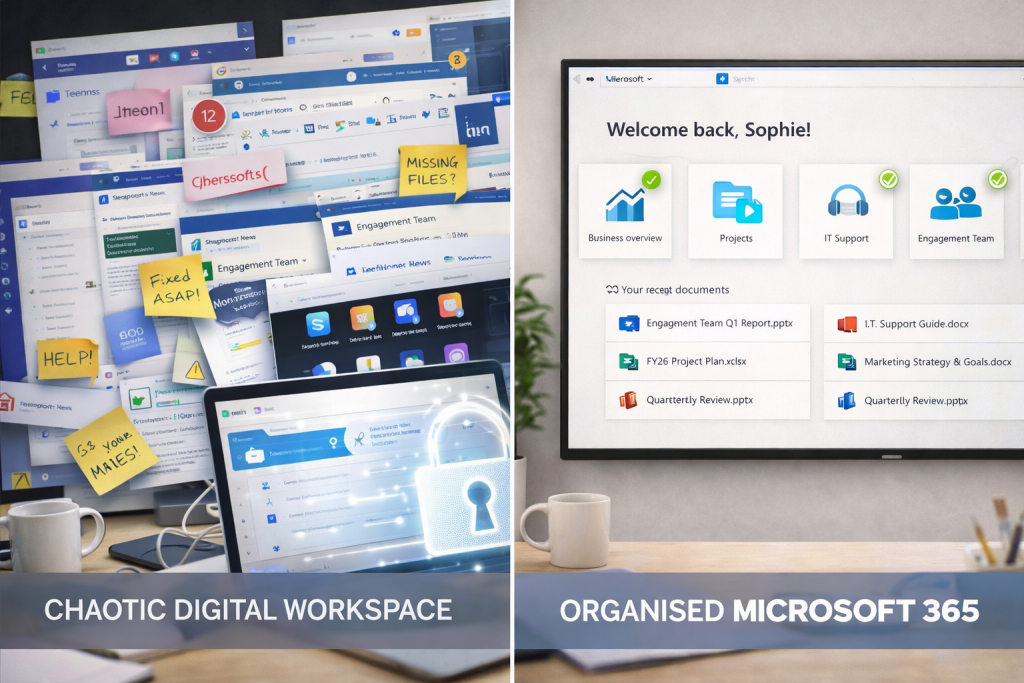
Let’s be honest: Microsoft 365 should make your life easier.
But instead, your SharePoint is a mess, Teams is a noisy jumble, and OneDrive doesn’t always sync the way you expect.
Sound familiar?
You’re not alone — and the good news is, it’s fixable.
Here’s what’s really slowing you down — and how smart Australian SMEs are cleaning it up in 2026.
Quick Fixes for a Sluggish Microsoft 365 Setup
Feeling bogged down by Microsoft 365? You’re probably dealing with one (or more) of these:
- Disorganised SharePoint folder structures
- Unused or duplicated Teams channels
- Sync issues with OneDrive
- Poor permission control
A structured clean-up and permissions audit can speed things up, reduce confusion, and boost collaboration.
1. Your SharePoint Structure Has No Structure
Most businesses start using SharePoint without a plan — and then things spiral:
- Folders within folders within folders
- Staff unsure where to save or find files
- File names like “v3_approved_final_FINAL”
Fix it:
- Create a top-level folder plan by department or function
- Apply naming conventions
- Use metadata tags instead of nested folders
2. Teams Channels Are Out of Control
Microsoft Teams should simplify communication — but for many, it’s become a source of stress:
- Too many channels
- Confusing private chats vs. team chats
- Files saved in 6 different places
Fix it:
- Archive or delete unused channels
- Create clear rules on when to use chats vs. posts
- Link channels directly to relevant SharePoint libraries
3. OneDrive Is Fighting with Itself
Sync errors, files not showing up, or offline access issues?
OneDrive can break down when:
- Staff use personal vs. work accounts
- Files are saved locally without cloud sync
- Sync limits are reached
Fix it:
- Ensure all users are signed in with work accounts only
- Review sync settings and storage quotas
- Use shared libraries for collaboration — not personal drives
4. Your Permissions Are Slowing Everything Down
Nothing kills productivity faster than:
- “Access denied” errors
- Everyone having access to everything
- No audit trail of who touched what
Fix it:
- Assign roles by group (not user-by-user)
- Restrict access to sensitive folders
- Turn on audit logging and permission alerts
5. You’ve Never Done a Proper 365 Health Check
If your Microsoft 365 environment has grown organically (read: chaotically), it’s likely:
- Storage limits are near max
- Licences aren’t aligned to user needs
- Apps you’re paying for aren’t being used
Fix it:
- Run a full licence and usage audit
- Remove redundant apps or assign them correctly
- Review storage policies and archive old data
What a Microsoft 365 Health Check Looks Like
At Simplicity I.T., we help SMEs clean up their environments with:
- SharePoint structure and access review
- Teams/channel usage and archiving
- OneDrive sync and storage issues
- Permissions and security policies
- Training to improve staff usage
We’ll show you where the friction is — and how to fix it.
Ready to Speed Things Up?
A tidy Microsoft 365 setup:
- Saves time
- Reduces errors
- Boosts staff happiness and efficiency
Book your free 365 Health Check and let’s turn your digital clutter into streamlined collaboration.